
Live tracker setup and installation
The FlopHero Live Tracker brings the power of GTO analysis directly to your live sessions. It automatically detects and uploads hands as you play, giving you near-instant feedback on your decisions. Setting it up is a straightforward process that takes just a few minutes.
This guide will walk you through downloading the tracker, installing it on your system, and configuring it to monitor your poker client's hand history folders. Once set up, the tracker runs quietly in the background, so you can focus on your game while FlopHero does the heavy lifting. If you prefer to upload hands manually, check out How to Upload Your Hand Histories.
Downloading and installing the Live Tracker
First, you'll need to download the Live Tracker application. You can find the download link in the Live Tracker section of your FlopHero account, which is accessible from the More menu in the top navigation. Currently we only have available the Windows version.
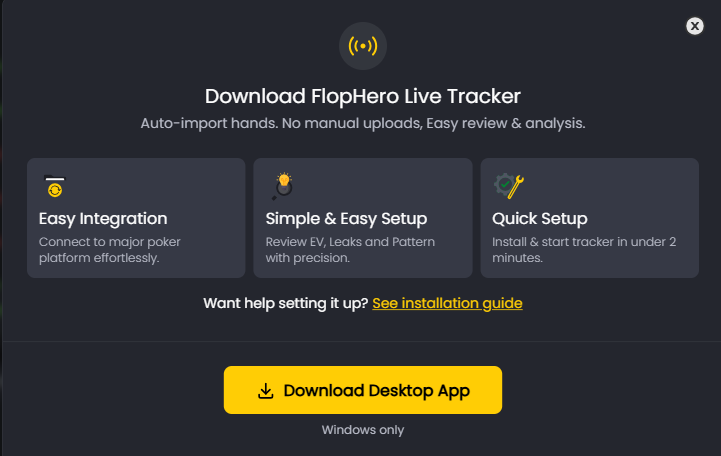
Once the download is complete, you just need to run the installer and follow the on-screen prompts. The tracker will install and create a desktop shortcut for easy access.
After installation, launch the Live Tracker. You'll be prompted to log in with your FlopHero account credentials. This links the tracker to your account, so all uploaded hands are sent to your personal database.

Syncing with your existing poker tracking software
One of the most convenient features of the FlopHero Live Tracker is its ability to sync directly with your existing poker tracking software. If you're already using Hand2Note, HoldemManager, or PokerTracker, you don't need to manually configure hand history folders. The tracker can automatically detect and sync with these programs.
When you first launch the Live Tracker, you'll see a screen titled "Choose where to sync hands from." This displays a list of compatible tracking software installed on your system, along with their default archive locations:
- Hand2Note: Typically located at C:\Hand2Note4Hh
- HoldemManager: Typically located at C:\HM2Archive
- PokerTracker: Typically located at C:\PT4Archive
Simply check the box next to the software you want to sync with, and the Live Tracker will automatically monitor that folder for new hands. This is especially useful if you're already using one of these tools for your HUD or database management, as it eliminates the need to set up duplicate folder monitoring.
If you don't use any of these programs, or if you want to add additional custom folders, you can still use the Add Folder button to manually select any hand history folder on your system. This gives you complete flexibility to track hands from any source.
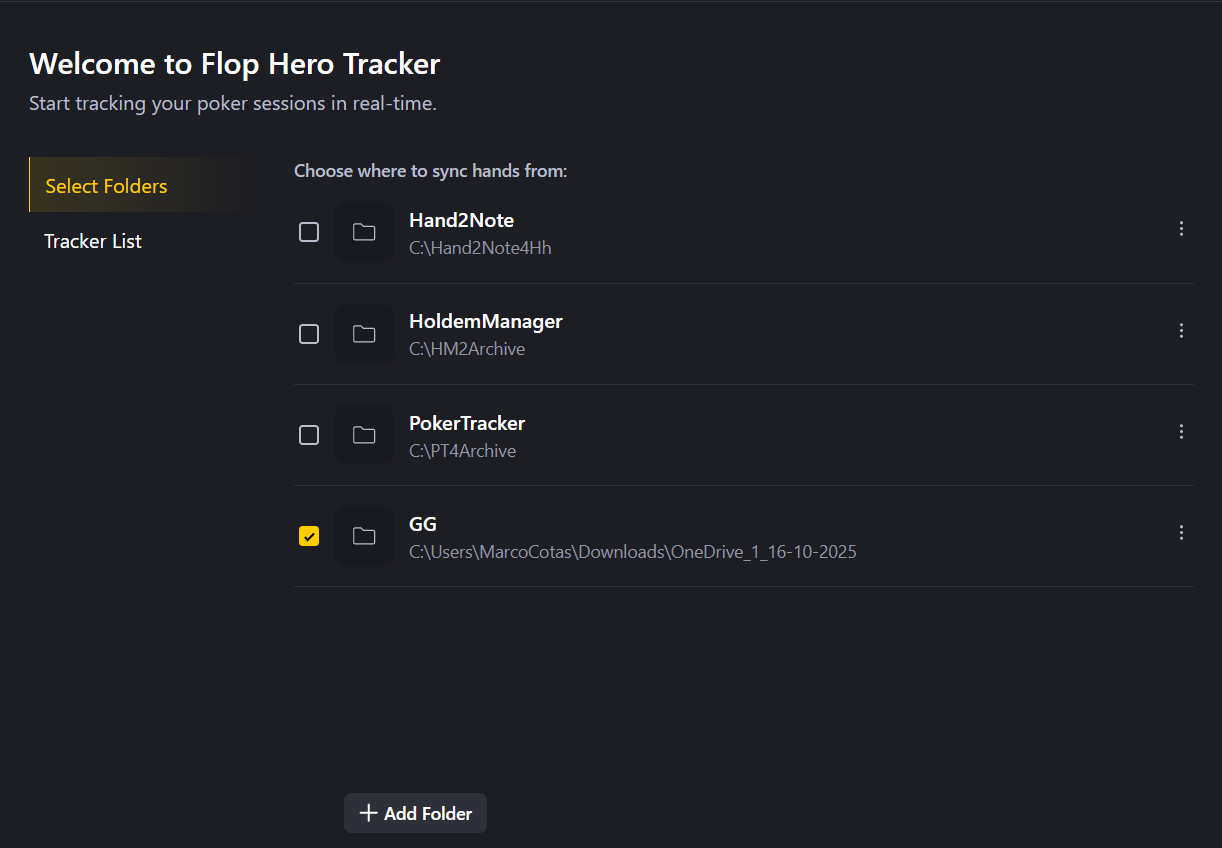
Once you've selected your sync sources, click Next to complete the setup. The tracker will immediately begin monitoring all selected folders and uploading new hands as they appear. For more on how to use the tracker during your sessions, see Using Live Tracker for Real-Time Hand Analysis.
Configuring hand history folders
For the Live Tracker to work, it needs to know where your poker client saves your hand history files. Most poker clients save these files to a specific folder on your computer. The tracker needs to monitor this folder to detect new hands as they are written.
If you're not using Hand2Note, HoldemManager, or PokerTracker, you'll need to manually add your hand history folders. Click the Add Folder button and navigate to the hand history folder for your poker client. You can add multiple folders if you play on more than one site.
Here are the default hand history locations for some of the most popular poker clients:
Poker Client
- Default Hand History Folder Location
PokerStars
- C:\Users\YourUsername\AppData\Local\PokerStars\HandHistory\
GGPoker
- C:\Users\YourUsername\Documents\GGPoker\HandHistory\
iPoker
- C:\Users\YourUsername\AppData\Local\iPoker\HandHistory\
If you've customized your hand history folder locations, make sure to select the correct folder in the Live Tracker. You can always add or remove folders later from the tracker's settings menu. Once your hands are uploaded, you can manage them through the Database Management page.
Troubleshooting common issues
If the tracker isn't working as expected, here are a few things to check:
Is your poker client saving hand histories? Make sure that your poker client is configured to save hand histories locally. This option is usually found in the client's settings menu.
Is the correct folder selected? Double-check that the Live Tracker is monitoring the correct hand history folder. If you've recently updated your poker client, the folder location may have changed.
Are you logged in? Ensure that you are logged into the Live Tracker with your FlopHero account credentials.
Check your internet connection. A weak or unstable internet connection can cause upload failures. The tracker will automatically retry failed uploads, but a stable connection is recommended.
If you continue to experience issues, please don't hesitate to contact our support team. Once your tracker is running smoothly, you can start reviewing your hands on the Session Dashboard and using the Using Live Tracker for Real-Time Hand Analysis features.
Was this article helpful?
Still need help?
Join our community
Get instant support from experts and fellow players
Join Discord Community