
Using live tracker for real-time hand analysis
Once you have the Live Tracker installed and running, you're ready to tap into one of FlopHero's most powerful features: real-time GTO analysis. The tracker monitors your hand history folders and uploads new hands as you play, giving you almost instant feedback on your decisions. This allows you to identify and correct leaks while they're still fresh in your mind.
This guide will show you how to make the most of the Live Tracker during your sessions. We'll cover how the auto-import function works, how to review your hands as you play, and some best practices to ensure you're getting maximum value without disrupting your focus. If you haven't set up the tracker yet, check out How to Set Up and Install the Live Tracker.
How the auto-import function works
The Live Tracker runs quietly in the background, continuously monitoring the hand history folders you've selected. When your poker client writes a new hand to the folder, the tracker detects it within seconds and automatically uploads it to FlopHero's servers for analysis.
Once uploaded, our solver gets to work, analyzing every decision point in the hand. Most hands are fully analyzed in 10 to 30 seconds.
Reviewing your hands while you play
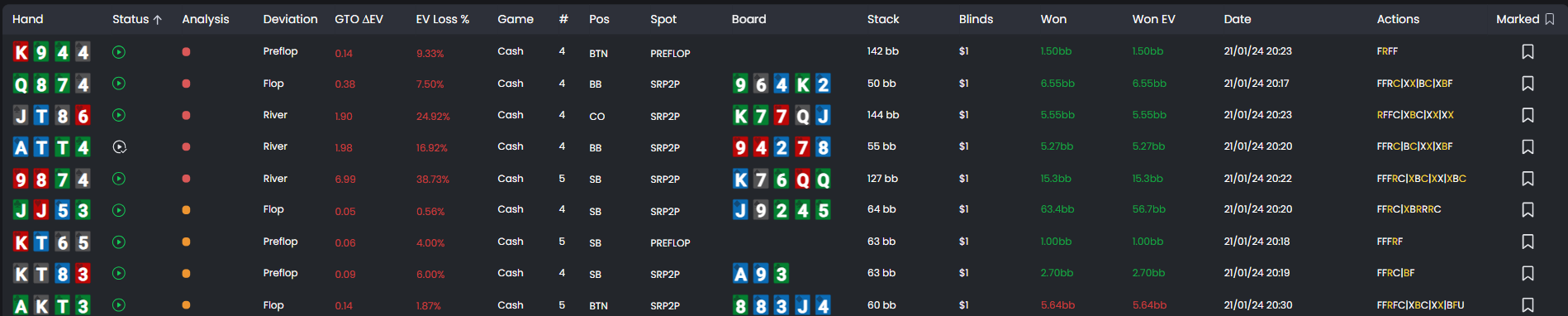
To see your analyzed hands, all you need to do is keep the FlopHero web interface open in your browser. As soon as a hand is finished processing, it will appear at the top of your hand list in the Sessions page. You don't even need to refresh the page; the list will update automatically.

When a new hand appears, you can click on it to open the GTO Replayer. Here, you'll see a full breakdown of the hand, including:
- Your actions on each street
- The GTO-optimal recommendations from our solver
- The EV (Expected Value) impact of your decisions
- Decision quality indicators (Optimal, Weak, or Blunder)
This near-instant feedback is incredibly valuable for evaluating marginal spots. Did you make the right call on the river? Was your bluff sized correctly? The Live Tracker gives you the answers you need while the details of the hand are still fresh. For more on interpreting these results, see Session Dashboard and Replayer Interface Guide.
Best practices for live analysis
While it can be tempting to dive into the replayer after every hand, it's important to stay focused on your live tables. Constantly switching your attention between playing and studying can hurt your performance. Here are a few best practices to help you find the right balance:
Use a second screen. The ideal setup is to have your poker tables on one screen and the FlopHero web interface on another. This allows you to glance at your results without having to minimize your tables.
Wait for natural breaks. Instead of reviewing hands in the middle of the action, use natural pauses in the game. This allows you to review a few key hands without losing your rhythm.
Focus on major mistakes. Don't get bogged down analyzing every small decision. Keep an eye out for hands marked with a red Blunder indicator. These are the most costly mistakes and the ones you should prioritize reviewing.
Tag hands for later. If you play a particularly interesting hand that you want to review in-depth later, use the bookmark icon to tag it. This makes it easy to find after your session is over.
Many top players keep FlopHero open but don't actively review hands during their session. They use it to passively notice major leaks flagged by the tracker, then do a full review after they're done playing. Experiment to find the workflow that works best for you.
Performance and system impact
The Live Tracker is designed to be as lightweight as possible. All the heavy GTO calculations are performed on our servers, so the tracker itself uses very few of your computer's resources. You shouldn't notice any impact on your computer's performance, even when playing on multiple tables.
The tracker uses a queue to manage uploads, so if you're playing a high volume of hands, you may see a small queue build up. This is normal. However, if the queue becomes very large, it could indicate an issue with your internet connection. For troubleshooting tips, see How to Set Up and Install the Live Tracker. Once your session is complete, you can manage all your uploaded hands through Database Management.
Was this article helpful?
Still need help?
Join our community
Get instant support from experts and fellow players
Join Discord Community