
Strategies overview
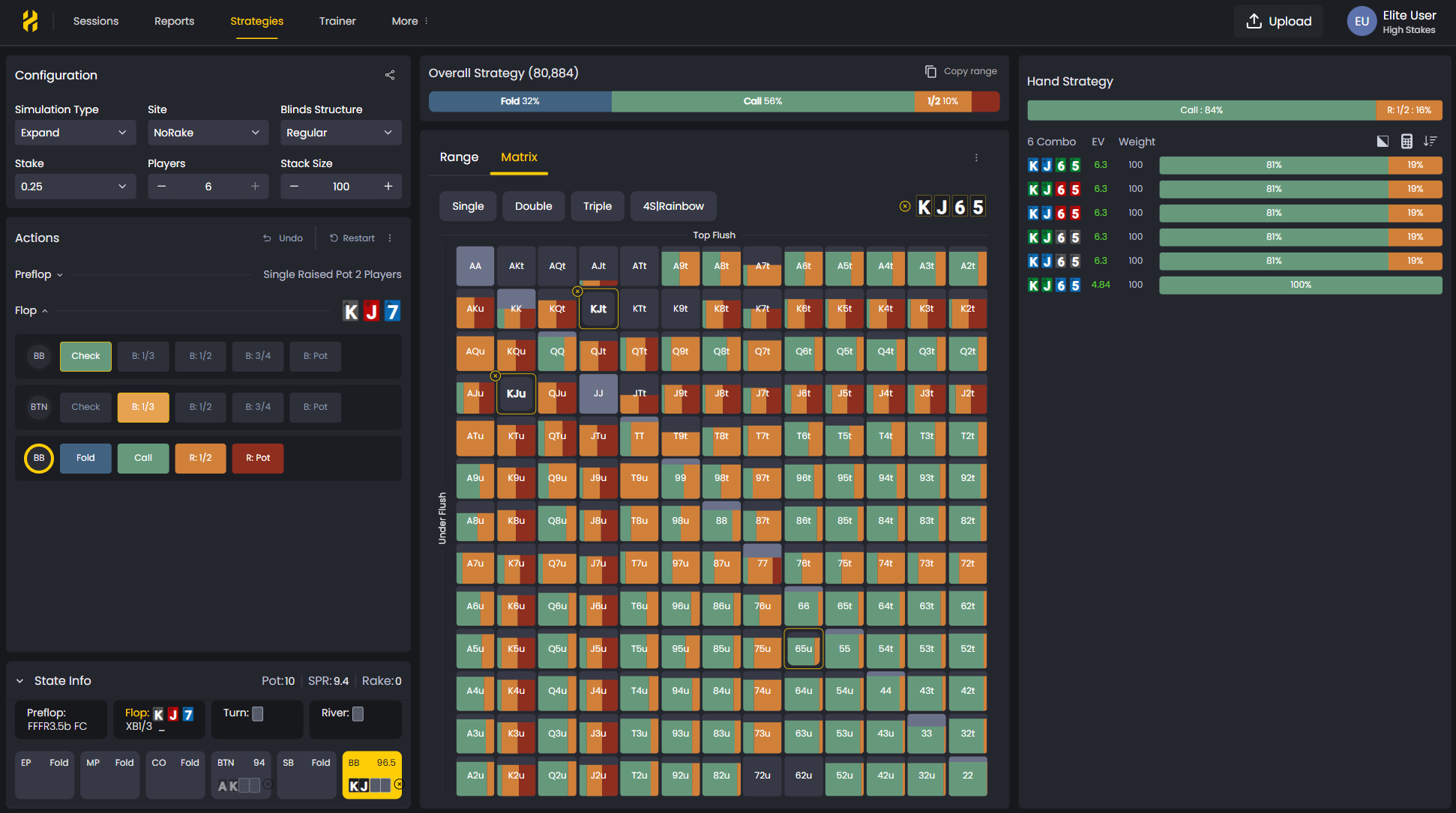
The Strategies section is your dedicated GTO solver for PLO Cash games. It’s where you explore optimal play across any poker situation you can imagine. Unlike the GTO Tracker that reviews hands you’ve already played, Strategies lets you create scenarios from scratch and study how GTO would handle them before you even sit down at the table.
Think of it as your poker laboratory. You can test ideas, compare lines, and build your intuition by seeing how the solver plays consistently across similar spots.
What Is the Strategies Section?
Strategies is your main tool for deep PLO study. It helps you explore GTO strategies and learn optimal plays for any situation. You can create custom scenarios to analyze specific spots, compare alternative lines, and review EV differences between actions.
The GTO Replayer connects directly to this section. This means you get consistent analysis across all your tools, whether you’re reviewing a hand you played or studying a theoretical spot.
When to Use Strategies
You’ll find Strategies useful in several situations. Before playing, use it for pre-game warm-ups to review standard situations. After your session, solve tricky hands that came up during play. When you’re exploring theory, test new ideas or unconventional lines you’ve been thinking about.
It’s also perfect for leak finding. If you notice patterns in your play that don’t feel right, you can set up those exact scenarios and see where your strategy diverges from GTO solutions.
For complementary insights, check the Reports section to identify weaknesses revealed by your tracked hands. The combination of Reports and Strategies gives you a complete picture of where you’re losing EV and how to fix it.
Types of Simulations
You can choose from three simulation types, depending on your goal.
- Precision gives you full solver accuracy for specific spots. It uses detailed game trees and provides the most accurate GTO data available. Use this when you’re studying high-frequency spots or situations where accuracy matters most.
- Expand runs faster and covers more ground. It uses approximation algorithms to generate results for spots that haven’t been solved to the precision level. This is your go-to for exploring new or less common situations where a full Precision simulation isn’t available.
- Preflop Only focuses entirely on preflop decisions. It’s very fast and covers nearly every preflop setup you’ll encounter. If you’re working on your preflop fundamentals, this is where you start.
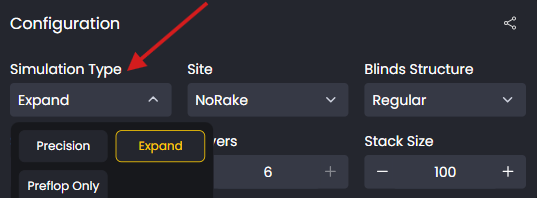
For a technical explanation of each type, read the Simulation Types article.
The Range - First Workflow
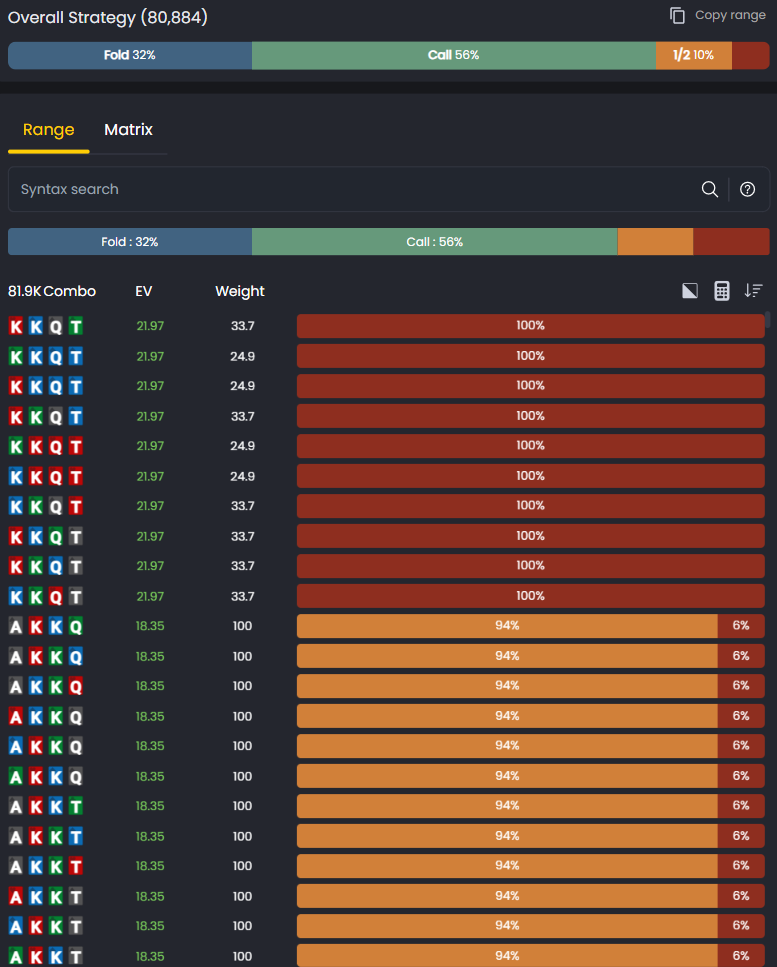
Range View is your primary workspace, giving you a clearer and more complete picture of how the overall strategy behaves before you zoom into specific hands.
When you open any spot, you’ll immediately see the full structure of the strategy. The Range View shows every combo with its EV, weight, and action frequencies. This makes it much easier to spot patterns, compare frequencies, and understand the strategy as a whole.
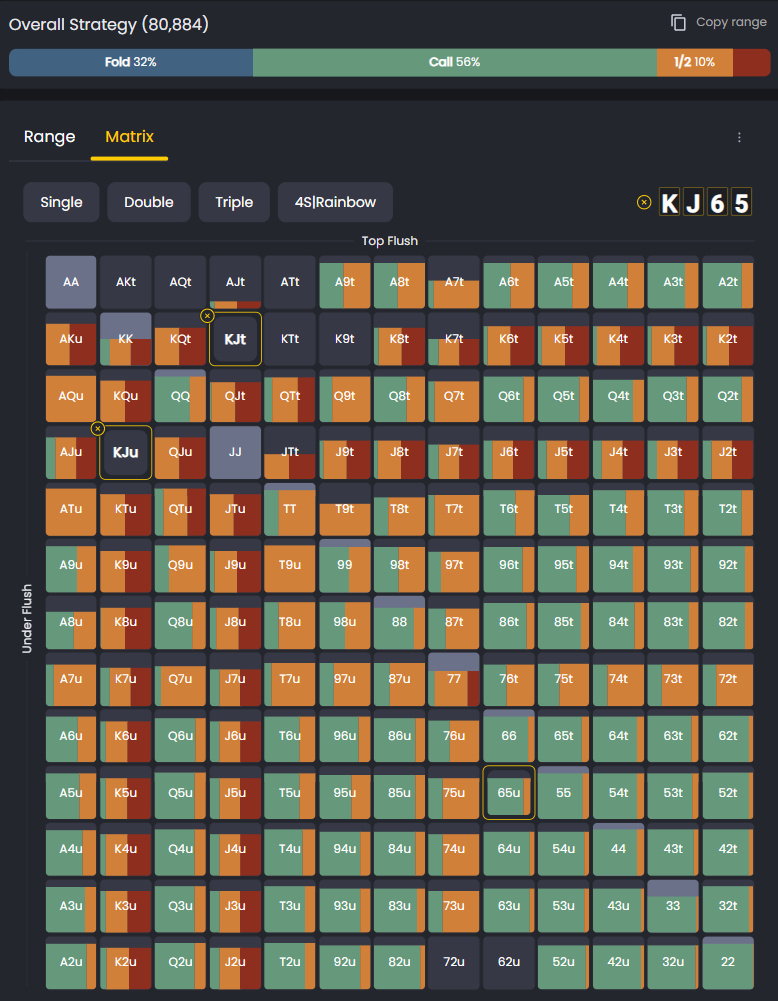
If you need precision on specific combos, just switch to Matrix View or use the syntax search bar.
Hand Categories Panel
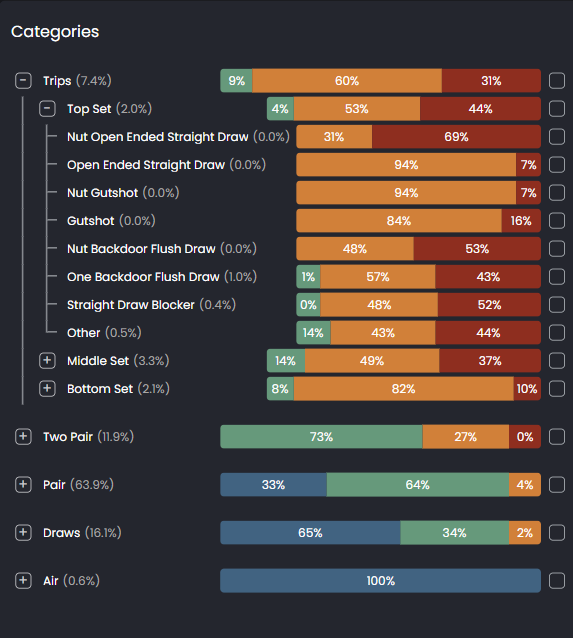
The Hand Categories panel has been created to make filtering and comparison easier. In postflop spots, you can isolate pairs, trips, straights, flush draws, and more. This helps you see how different hand types play across the board and understand the logic behind GTO’s decisions.
Categories are only available in postflop spots, as they’re based on made hands and draws that appear after the flop.
Key Features
You’ll use several integrated tools to customize and analyze simulations.
- Game Configuration lets you set parameters like simulation type, stack sizes, positions, and bet sizes. You can replicate almost any PLO Cash situation you want to explore.
- Syntax Search helps you instantly locate specific hands or board textures. Instead of clicking through hundreds of combinations, just type what you’re looking for.
- The Matrix visualize solver actions and mixed frequencies for every spot. The Table shows you the action tree and overall strategy, while The Matrix gives you a grid view of your entire range.
- Range View shows each player’s GTO range and how it evolves through the hand. You can sort by EV, filter by action, and see exactly which hands belong in each part of your strategy.
To learn how to set up custom games or variants, see the Game Configuration article.
How Strategies Differs from the GTO Tracker
Both Strategies and the GTO Tracker help you understand optimal play, but they serve different roles.
The GTO Tracker analyzes your real hands and highlights deviations from GTO. It shows you where you made mistakes and how much EV you lost.
Strategies solves new or hypothetical hands so you can understand why GTO plays a spot a certain way. It’s about learning the logic behind the decisions.
Use the Tracker to find mistakes. Use Strategies to study why they occurred and how to correct them. Together, they create a complete learning loop: identify leaks, understand the theory, and apply the fixes.
Getting Started
Start by picking your simulation type and setting up your game configuration. Choose the positions, stack sizes, and actions that match the spot you want to study. Then explore the results using Range View and Matrix View.
The more you use Strategies, the more patterns you’ll recognize. You’ll start to see how GTO adjusts to different board textures, stack depths, and positions. These patterns become your foundation for making better decisions at the table.
Was this article helpful?
Still need help?
Join our community
Get instant support from experts and fellow players
Join Discord Community