
The matrix view
The Matrix View in the FlopHero Replayer shows GTO strategy across your entire range, not just your specific hand. This lets you see which hands should bet, check, raise, or fold in any given spot.
While the Decision Analysis Panel tells you what to do with your hand, the Matrix View shows you how that hand fits into the overall strategy. This is essential for understanding range construction and balance.
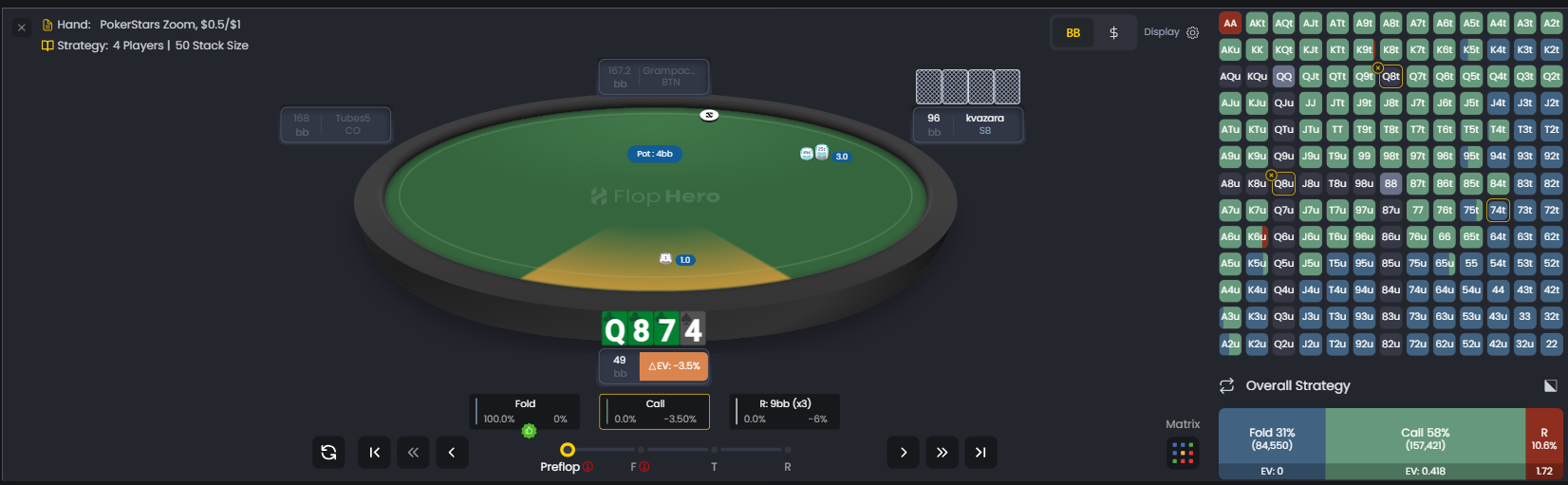
Understanding the color coding
The Matrix View displays a grid of all possible starting hands (or hand classes for Omaha). Each hand is color-coded to show what action GTO takes with that hand in the current spot:
- Red or Orange - Bet or raise
- Green - Check or call
- Blue - Fold
- Mixed colors - Mixed strategy (e.g., bet 70%, check 30%)
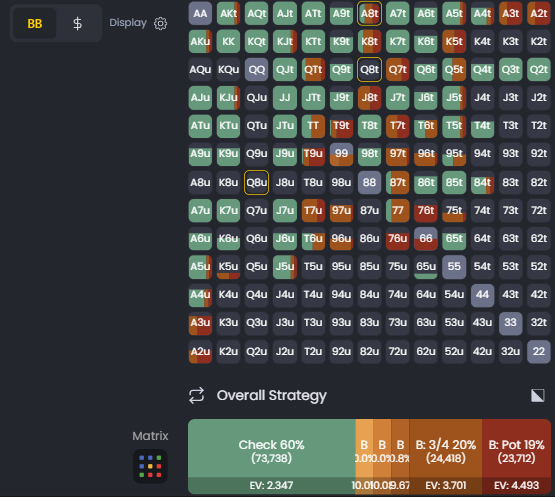
Your specific hand is highlighted with a border so you can see exactly where it sits in the range. This context is crucial for understanding whether you're playing too tight, too loose, or just right.
Matrix view settings
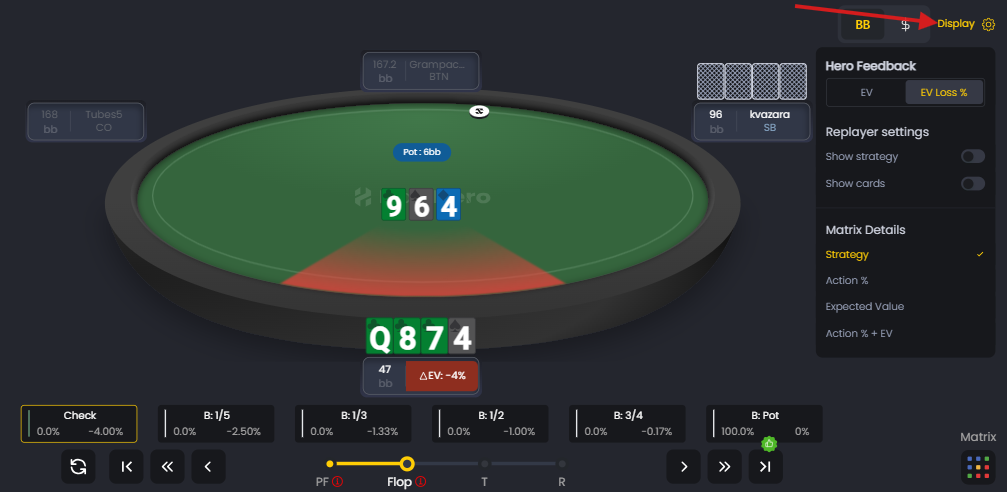
The Matrix View has several controls that let you customize what you see:
Display settings
Click the Display button (gear icon) to access:
Show strategy - Toggle to show or hide villain's GTO strategy. Useful when you want to focus only on your own range.
Show cards - Toggle to show or hide villain's cards. Turn this off to reduce visual clutter when studying range vs range dynamics.
Matrix details
The Matrix Details panel lets you choose what information to display:
- Strategy - Shows color-coded actions (default view)
- Action % - Shows the percentage for each action (e.g., Bet 75%, Check 25%)
- Expected Value - Shows the EV for each action
- Action % + EV - Shows both frequency and EV together
Start with Strategy to see the big picture, then switch to Action % when you want precise frequencies.
Range weighting toggle
The grid icon on the right side toggles between two views:
- Unweighted - Shows all combos equally, even if they have low frequency in your range
- Weighted - Shows combos sized by how often you have them (based on previous actions)
Use Weighted to see which hands are actually in your range after preflop and earlier postflop actions. Use Unweighted to see the theoretical strategy for all possible hands.
Hand strategy vs overall strategy
The toggle at the bottom switches between:
- Hand Strategy - Shows the strategy for your specific hand only
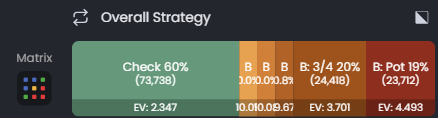
- Overall Strategy - Shows the strategy for your entire range, weighted by how often you have each combo based on previous actions
Use Hand Strategy when reviewing your specific hand. Use Overall Strategy to understand how your range should play on this board texture.
Why range construction matters
GTO isn't about playing individual hands in isolation - it's about playing your entire range in a balanced way. The Matrix View shows you:
- Value-to-bluff ratios. How many strong hands vs bluffs GTO bets with
- Polarization vs linear ranges. Whether GTO bets with the nuts and air (polarized) or medium-strength hands (linear)
- Bluff candidates. Which weak hands have enough equity or blockers to bluff profitably
- Check-back range. What hands GTO protects by checking (not just weak hands)
Understanding these patterns helps you make better decisions across your entire range, not just memorize what to do with specific hands.
Using the matrix view in your study routine
Here's how to get the most from the Matrix View:
- Start with Hand Strategy. See where your specific hand sits in the range. Is it a clear bet, a clear check, or a mix?
- Switch to Overall Strategy. See how your entire range should play on this board texture.
- Toggle to Weighted view. See which hands are actually in your range based on previous actions.
- Check Action % for precise frequencies. See exactly how often GTO bets, checks, or folds with each hand.
- Identify the pattern. Is this a polarized range, linear range, or something else? Understanding the pattern helps you apply it to similar boards.
Use Reports to find similar spots. If you're consistently misplaying a certain hand class, filter for that spot and study the Matrix View across multiple examples.
The Matrix View transforms your understanding from "what should I do with this hand" to "how should I construct my range in this spot." That's the difference between memorizing and truly understanding GTO strategy.
Matrix view vs decision analysis panel
Both tools work together:
- Decision Analysis Panel - Shows what to do with your specific hand and how much EV you lost
- Matrix View - Shows how your hand fits into the overall range strategy
Use the Decision Analysis Panel to identify mistakes. Use the Matrix View to understand why those mistakes happened and how to fix them across your entire range.
For more on interpreting GTO feedback, see Understanding decision analysis. For tips on navigating the Replayer efficiently, see Replayer tips and shortcuts.
Was this article helpful?
Still need help?
Join our community
Get instant support from experts and fellow players
Join Discord Community