
Upload Your First Session
The first time you log into your account this is what your dashboard would look like. From
here you should upload your first session to start analyzing and studying your game.

Getting your hands into FlopHero takes about 2 minutes. You can upload files manually or set up Live Tracker to auto-capture hands as you play.
If you need help exporting hand histories from your poker site, check our guide on how to export hand histories.
Manual upload

You can always click the Upload button in the top right corner of your dashboard, or the one in the center of your screen. You’ll see a modal with two options: Upload and Paste Text.
Upload tab
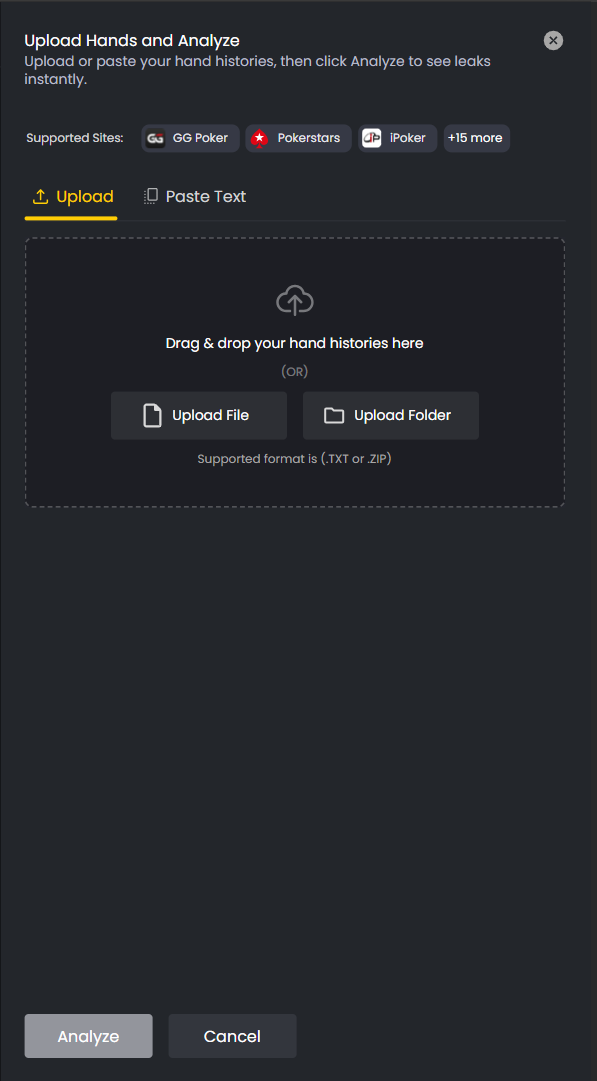
The Upload tab lets you drag and drop hand history files directly into the window. You can also click Upload File or Upload Folder to browse your computer.
Supported formats are .txt and .zip. Important: FlopHero only analyzes Pot-Limit Omaha (PLO) hands. Other variants like Hold’em are not supported. Most poker sites export hand histories as .txt files. If you have multiple sessions, you can zip them together and upload the whole folder at once.
Here are the current file size limits: * ZIP: 100MB * TXT: 10MB
Supported sites include GG Poker, Pokerstars, iPoker, and several others. Check the modal for the full list.
Once you’ve selected your files, click the Analyze button. Analysis can take a few minutes depending on the number of hands. FlopHero processes the hands and runs GTO analysis on every decision point. This usually takes a few minutes depending on how many hands you’re uploading.
Paste text option
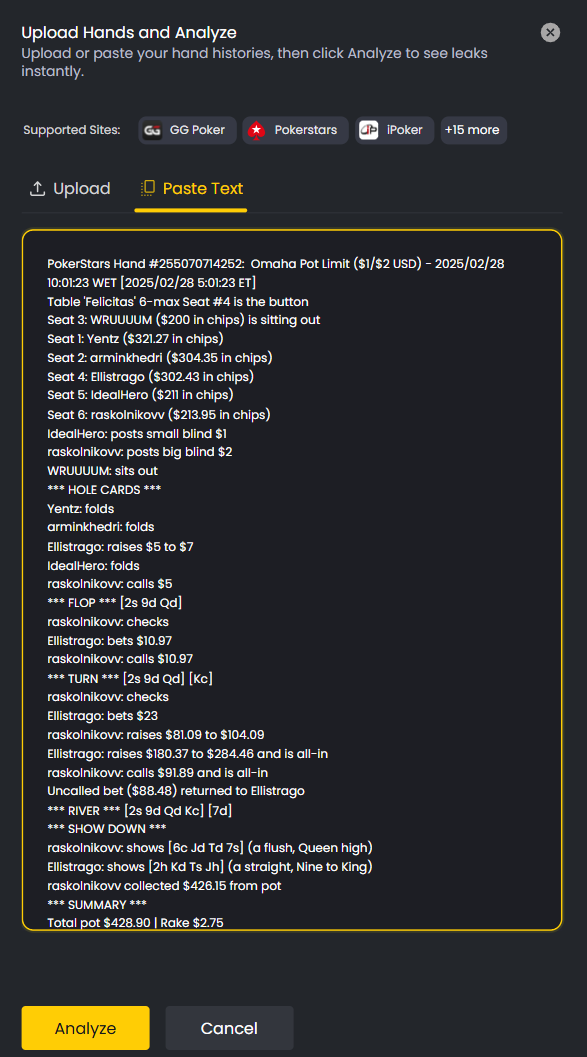
If you don’t have hand history files saved locally, you can copy and paste the text directly. Switch to the Paste Text tab in the upload modal, paste your hand histories, and click Analyze. This is useful if you’re grabbing a single session from your poker client’s hand history viewer.
Live Tracker (automatic uploads)
For ongoing analysis, download Live Tracker from the More menu. This is a desktop app that auto-captures hands from your poker client as you play and uploads them to FlopHero automatically.
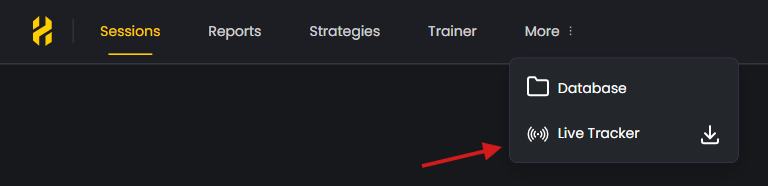
Install Live Tracker, point it to your poker client’s hand history folder, and it handles the rest. No more manual exports. Hands appear in your FlopHero dashboard within minutes of finishing a session.
Live Tracker is free for all subscribers and works with the same supported sites as manual uploads. For a detailed guide, read our article on Live Tracker setup and installation.
During the upload
Once you start the upload, a progress bar shows how much is processed. Upload time depends on file size and internet speed:
A few hundred hands: usually under a minute.
Large databases: expect longer processing.
You can continue using the platform while it runs.
How FlopHero analyzes your hands
After upload, the FlopHero engine compares your decisions against a large GTO solution set. It highlights leaks, suboptimal lines, and missed EV opportunities.
Analysis happens automatically in the background. You don’t need to wait - go ahead and prepare your next session.
After upload
Once analysis finishes, your session appears in the Sessions page with key metrics: hands played, amount won, expected value, and GTO ΔEV (how much EV you lost compared to optimal play).
Click the session to see individual hands. Click any hand to open the GTO Replayer and review your decisions.
Troubleshooting
Important: If your upload fails, check that your hand histories are in English. FlopHero doesn’t support other languages yet.
Make sure you’re uploading PLO (Pot Limit Omaha) hands. The platform doesn’t analyze Hold’em or other variants.
If you’re on the Free plan, you’re limited to 10 hands per day. Upgrade to a paid plan for unlimited uploads within your stake range.
For more help, see our Hand upload troubleshooting guide.
Was this article helpful?
Still need help?
Join our community
Get instant support from experts and fellow players
Join Discord Community